Interface tour
Larrygram has one set of commands and two complete layouts on top of it. Pick the one you know: both open the same drawings and run the same commands.
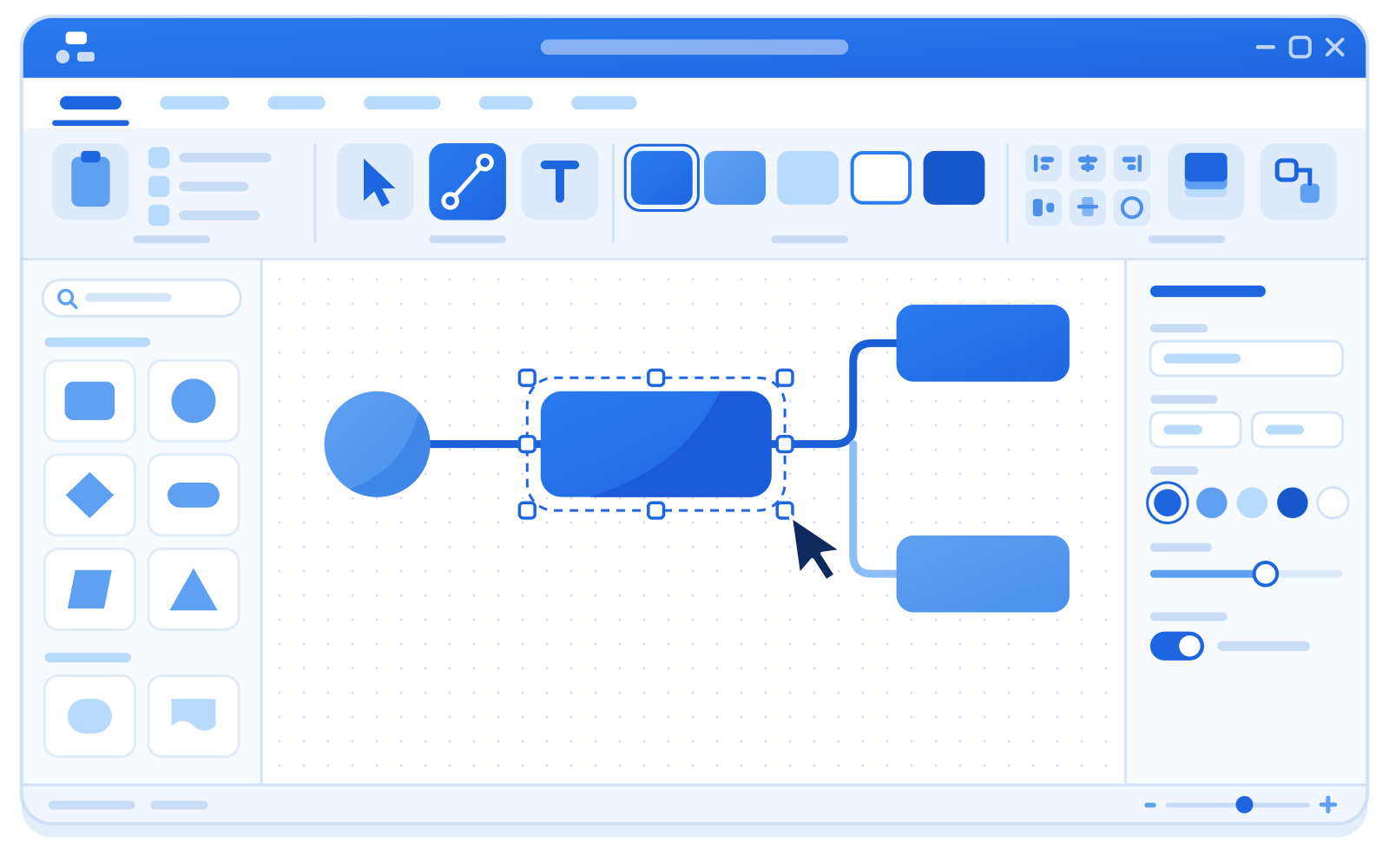
From top to bottom:
- Title bar: the app icon and the Quick Access Toolbar on the left, the document title in the middle, and a help button.
- Tab strip: the File button, then the tabs Home, Insert, Design, Data, Process, Review and View.
- Command bar: the controls of the selected tab, in groups with a caption under each. A launcher in a group’s corner opens more options. The ^ button at the far right collapses the command bar.
- Body: the Shapes window on the left, then the drawing with rulers.
- Page tabs: one tab per page, an All menu listing every page, and a button to insert a page.
- Status bar: the page number, and zoom controls on the right.
Tips:
- Double-click a tab, or press Ctrl+F1, to collapse the command bar. Click a tab to show it over the drawing; double-click again to pin it.
- Contextual tabs appear to the right of View when they apply: Picture Tools, Container Tools and ShapeSheet Tools.
- Scroll the mouse wheel over the tab strip to move between tabs.
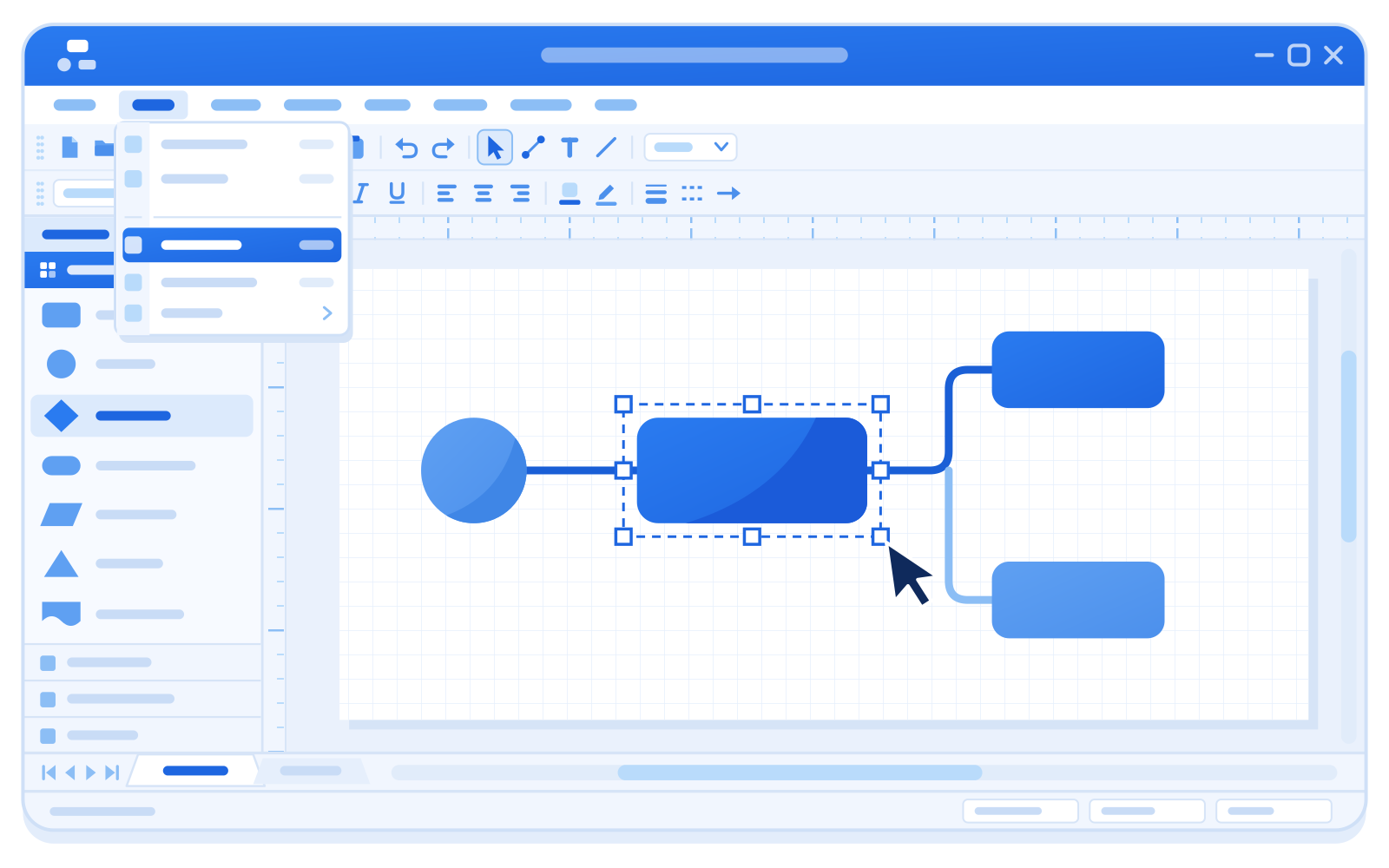
From top to bottom:
- Title bar: the document name and the app name.
- Menu bar: File, Edit, View, Insert, Format, Tools, Data, Shape, Window and Help, and a “Type a question for help” box at the right end.
- Toolbars: Standard on the first row and Formatting on the second. Show or hide toolbars in View > Toolbars.
- Body: the docked Shapes window on the left, then the drawing with rulers on the top and left.
- Page tabs: first, previous, next and last page buttons, then the tabs.
- Status bar: the width, height and angle of the selection, and the page number.
Tips:
- Press Alt or F10 to put focus on the menu bar; underlined letters show the access keys. Alt+F opens File.
- Use the arrow keys to move through menus, Enter to choose and Esc to close.
- Right-click a shape, a page tab or text you are editing for its context menu.
Switch layouts
Section titled “Switch layouts”Switch at any time, without a restart:
- The welcome wizard: shown on first start, and again from Help > Welcome. In progress
- Options: choose the layout under Panel layout.
- The command line: start the app with
--ui-layout. See Installation.
Larrygram remembers your choice.
The canvas
Section titled “The canvas”- Zoom at the pointer with Ctrl and the mouse wheel. Ctrl++ and Ctrl+- zoom in and out, and Ctrl+0 fits the page to the window.
- Pan by dragging with the middle mouse button, or hold Space and drag.
- Turn the grid and rulers on or off from View or Options.
- Set the display units (inches, millimeters, centimeters, meters or feet) in Options.